
Clients don’t blame a wobbly strategy; they blame the screen. When a desk misses a clean breakout because the chart is set to a thin line view, people start doubting the platform. When enough traders feel like that, they start doubting you.
Candlestick charts turn raw price into something your sales, support, and trading teams can read at a glance. One look and they see who’s in control, where liquidity is stacking, and when momentum really shifts.
As one Fxbee product manager likes to say, “Clean candlesticks calm nervous traders.” For a brokerage, this isn’t just a visual upgrade; it’s a playbook for fewer complaints, faster training, and a platform that looks like it was built for grown-up money.
This guide walks through how to change a DAS Trader chart to a candlestick chart, then pushes further into layout templates, training, and risk tools so your whole team is reading the same story from the same screen.
Missing Entry Signals? Fix Your DAS Trade Chart View
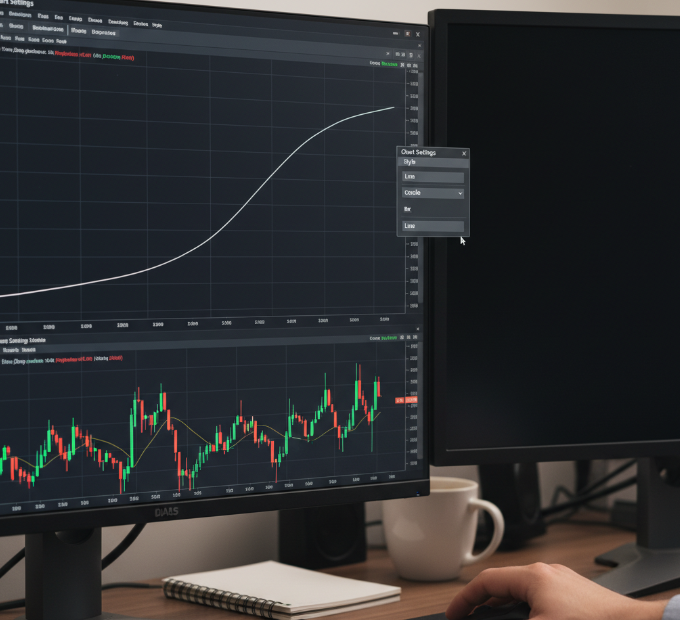
If your DAS layouts ship with Line Chart as the default, you’re handicapping your desks from day one.
Line charts only show closing prices. That strips out wicks, gaps, and the intrabar fight between buyers and sellers. On a quiet day it might not matter. On a volatile open, it’s the difference between catching the move at the level and chasing it three candles late.
Candlestick views fix three common problems:
No sense of intrabar aggression. Line charts hide whether buyers or sellers controlled the candle.
Invisible rejection and absorption. Long wicks at key levels never stand out.
Harder read on momentum. You see where price finished, not how it got there.
A standard DAS Price chart study can render as line, bar, or candlestick. In the platform’s official documentation, the Price study configuration includes a style control that switches between Candle, Bar, and Line chart types, so you’re not fighting a limitation — just a setting in the chart’s study configuration.
Reading Open Price to Close Price with Candlestick Chart Bodies
Every candle in a DAS chart encodes four key data points:
Open Price
High Price
Low Price
Close Price
That’s the same OHLC structure you’d see on a bar chart, but a candlestick chart makes the relationship between these prices visually obvious.
A filled or red body shows price closed below the open — sellers won that interval.
A hollow or green body shows price closed above the open — buyers took control.
The upper wick marks where buyers pushed before meeting supply.
The lower wick shows where sellers dumped before buyers stepped in.
When your DAS chart is set to candlesticks instead of lines, traders can instantly:
Spot rejection tails at resistance.
See failed breakdowns through support.
Read the difference between a gentle pullback and a hard reversal.
Once the style is set to candlestick in the Price study, everything else you layer on — VWAP, volume, and indicators — becomes much easier to interpret in real time.
Using VWAP, On-Balance Volume and Chaikin Money Flow for Entry Confirmation
DAS doesn’t just plot price; it ships with a full menu of built-in studies. In the Chart Studies & Indicators section of the DAS knowledge base, the Price study sits beside tools like VWAP, OBV, CMF, RSI, Bollinger Bands, ATR, and Heikin-Ashi, each documented with parameters and examples.
For intraday confirmation, three volume-and-liquidity tools stand out:
VWAP (Volume Weighted Average Price) shows the average price traded, weighted by volume. In the DAS docs, VWAP is added by right-clicking the chart, opening the study configuration, and adding the VWAP study from the available list.
On-Balance Volume (OBV) tracks cumulative volume flow. Rising prices with rising OBV support the move; rising prices with falling OBV warn of weakness.
Chaikin Money Flow (CMF) combines price and volume to show whether money is flowing into or out of a symbol across each candle.
A practical DAS candlestick stack for most desks looks like:
DAS Price study set to candlestick style.
VWAP as a “fair value” backbone.
OBV and CMF in separate panels below the chart.
Volume bars under price for context.
That’s enough to see whether a breakout candle is backed by real participation or just one thin print through the offer.
Marking Support Level, Resistance Level and Stop Loss Level on Candlesticks
Candles are only as useful as the levels you attach to them. DAS gives you standard drawing tools plus indicator overlays to make Support Level and Resistance Level obvious.
On a properly configured candlestick chart you can:
Draw horizontal levels at prior swing highs and lows.
Use Fibonacci retracements to mark “deep but healthy” pullback zones.
Anchor Stop Loss Level just beyond recent wick extremes instead of somewhere random in the middle of the range.
When combined with a candlestick view:
Long lower wicks into support with strong closes higher show absorption.
Long upper wicks into resistance with weak closes show rejection.
Tight consolidation candles atop reclaimed resistance often precede breakouts.
Traders can position stops and targets at those candles instead of guessing off the mid-range, and managers can audit risk decisions visually in seconds.
Aligning Market Order, Limit Order and Stop Order with Candlestick Signals
Changing the chart style isn’t just cosmetic — it changes order behavior.
With DAS tied into your order routing, you can align:
Market Orders with strong momentum candles breaking key levels.
Limit Orders at wick extremes where liquidity tends to stack.
Stop Orders just beyond clear invalidation points (above/below obvious candle clusters).
Examples:
Buy stop above a clear bullish engulfing candle that breaks prior highs.
Sell limit into resistance after a run of exhausted upper wicks.
Stop loss below the low of the signal candle rather than the low of the entire day.
Standardizing that logic in your candlestick layouts makes it easier for risk, trading, and support teams to speak the same language when reviewing trades.
Day Trading Setup: 1-Minute and 5-Minute Candlestick Views
Day traders live on short timeframes. In DAS, a clean dual-chart layout is simple once the Price style is set to candlestick.
A typical desk layout:
Left chart: 1-minute candlesticks for entries and micro-structure.
Right chart: 5-minute candlesticks for trend and context.
Shared VWAP and major levels on both charts.
Linked Montage window so symbols change both charts at once.
This gives scalpers the detail they need without losing sight of the bigger intraday story.
Template for Scalpers: 1-Minute Chart, VWAP and Bollinger Bands
For high-frequency or scalping desks, a focused DAS template might include:
1-minute candlestick chart as the primary view.
VWAP for intraday value.
Bollinger Bands for volatility envelopes.
Volume and OBV to confirm whether breakouts through the bands are real.
In the DAS Chart Studies documentation, Bollinger Bands are configurable for length, standard deviation, and band styling — exactly what you need to standardize volatility settings across all seats so everyone reads “overextension” the same way.
Combined, VWAP plus Bollinger Bands on a candlestick chart help traders see:
When price is stretched too far from VWAP.
Where mean-reversion trades make sense.
When strong trend candles are hugging a band and should be ridden, not faded.
Switching from Line Chart to Candlestick Chart in DAS Trader
Here’s the core operational change your teams need in DAS Trader:
Open the chart you want to change. Right-click inside the chart window and choose the option to open the Study Config or chart configuration dialog.
Locate the Price chart study. In the configuration window, find the Price study in the list of current studies. If it isn’t already present, add it from the available studies list.
Open the Price study configuration. With the Price study selected, click Config. According to the official Price Chart documentation, this window controls how price is plotted, including the chart type.
Change the chart type from Line/Bar to Candle. In the Price study settings:
– Find the style or chart type dropdown.
– Switch from Line or Bar to Candle (candlestick).Apply and save.
– Click OK to apply the new style.
– Save your desktop or layout so candlestick charts load automatically the next time DAS starts.
Once that’s done, every Price study on that chart renders as candlesticks, and all of your other studies (VWAP, RSI, ATR, etc.) sit on top of a much more readable price structure.
Presenting Bar Chart, Heikin-Ashi and Candlestick Chart for Client Education
Traders don’t just need candlesticks; they need to understand why candlesticks are your default.
Here’s an easy comparison to build into your DAS education flow:
Bar Chart (classic OHLC bar)
– Same open-high-low-close data as a candlestick.
– Good for showing price range without relying on color.
– Helpful when teaching purely mechanical technical analysis concepts like trend lines and pullbacks.Heikin-Ashi
– A smoothed variant that averages price to show trend more clearly.
– Great for teaching the idea of trend persistence and “staying in the move”.
– Useful for dashboards and overviews, not precise entry/exit timing.Candlestick Chart
– Richest visual representation of intrabar sentiment.
– Ideal as the “default” for your live trading screens, especially for short-term and intraday strategies.
The DAS Chart Studies documentation keeps all three views — Price, Heikin-Ashi, and related overlays — in one place so your internal training material can link directly to official explanations and parameters.
Layout Templates and Team Training
Once you’ve standardized candlestick charts and supporting studies, the real leverage comes from templates:
A baseline intraday layout (1-minute + 5-minute, VWAP, volume, OBV/CMF).
A swing layout (daily + 60-minute, RSI, ATR).
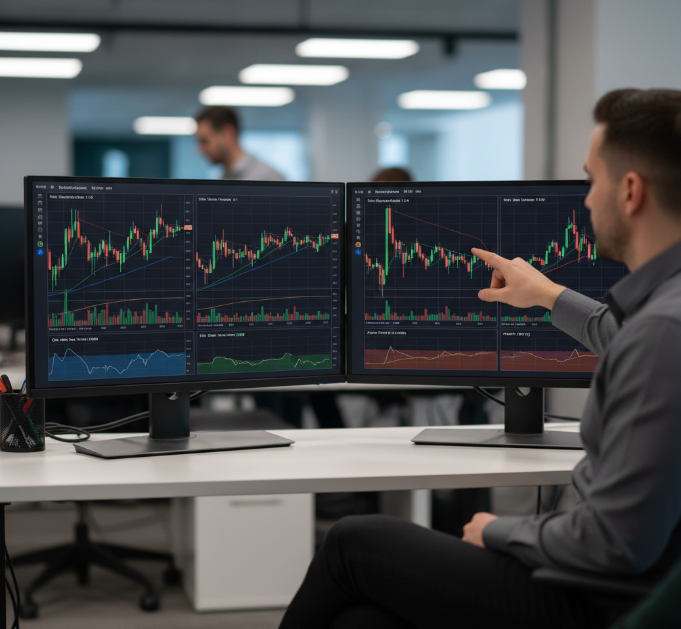
A training layout (multi-chart view with Bar, Heikin-Ashi, and Candlestick side by side).
From there you can:
Roll templates out to every seat so new users don’t get stuck on thin, unreadable defaults.
Cut support load by having everyone start from the same charting structure.
Use charts in product demos — a clean candlestick layout makes your platform look intentionally built, not patched together.
Short view layouts can also expose spread, order book depth, and breakout pressure more clearly. When traders understand how the Bid-Ask spread is eating into their edge, conversations about pricing and execution get much easier.
If your team wants a deeper dive on spread mechanics, the Fxbee article on spread breaks down Bid Price / Ask Price, how spreads are set, and why they matter for profitability.
Where Fxbee Fits In
Fxbee doesn’t replace DAS; it sits alongside it.
DAS handles execution, routing, and charting. Fxbee helps you make that execution more profitable and transparent.
A few angles where Fxbee ties directly into the candlestick layouts you’re building:
Platform selection. If you’re benchmarking DAS against other tools for different desks, Fxbee’s guide to the best trading platform options can help frame internal decisions and client-facing comparisons.
Profit and P/L education. Candlestick layouts make risk more obvious on screen, but clients still ask “How exactly is my P/L calculated?” Fxbee’s deep dive on forex profit and calculators shows how to explain profit mechanics clearly, including spread, commissions, and lot sizing.
Support and training. Clean charts reduce confusion, but some questions will always need a human. When your team is ready to push the education further, Fxbee’s support center and help content can extend what your own documentation covers, especially on execution costs and rebate structures.
Used together, DAS plus Fxbee lets you show clients what is happening on the chart and why their numbers look the way they do — without sending them down a rabbit hole of third-party tools.
Conclusion
Switching a DAS chart from a plain line view to a fully-loaded candlestick layout is more than clicking a style toggle. It’s an upgrade to how your:
Traders spot real opportunities versus noise.
Sales team demonstrates the platform to prospects.
Support crew explains “what that candle really did”.
Risk team audits entries, exits, and risk/reward visually.
The official DAS documentation for the Price chart, VWAP, OBV, CMF, RSI, Bollinger Bands, ATR, and Heikin-Ashi studies backs up each configuration choice with clear parameter explanations, so you’re not relying on hearsay or forum screenshots.
Tie that to Fxbee’s resources on spreads, profit calculation, and trading platforms, and you get a coherent story:
Candlestick charts show what price did.
DAS studies confirm how strong the move was.
Fxbee explains what it meant for real-world P/L and client experience.
Standardize that package — charts, templates, and education — and your desks spend more time trading solid setups and managing risk, and less time arguing with their screens.
References
Understanding Basic Candlestick Charts – https://www.investopedia.com/trading/candlestick-charting-what-is-it/
Candlestick chart – https://en.wikipedia.org/wiki/Candlestick_chart
DAS Trader Pro – Official Site – https://dastrader.com/
Price Chart – https://dastrader.com/docs/price-chart/
On-Balance Volume (OBV) – https://dastrader.com/docs/obv/
Chaikin Money Flow (CMF) – https://dastrader.com/docs/cmf/
Relative Strength Index (RSI) – https://dastrader.com/docs/rsi/
Bollinger Bands – https://dastrader.com/docs/bollinger-bands/
Average True Range (ATR) – https://dastrader.com/docs/atr/
Heikin-Ashi – https://dastrader.com/docs/heikin-ashi/
Chart Studies & Indicators – https://dastrader.com/docs/chart-studies-indicators/
FAQ
How does switching to candlesticks in DAS help a brokerage desk?
Candlesticks make price action easier to read during live trading. Seeing Open Price, High Price, Low Price, Close Price, and Volume in one bar cuts down second-guessing during fast moves.
Candlestick Chart highlights Breakout and Breakdown faster than a Line Chart
Patterns like Hammer and Engulfing Pattern stand out clearly
Shared layouts reduce desk-side debates
What trade chart layout works best across multiple traders?
A standard trade chart layout keeps every screen familiar, which matters when desks work together. Consistency beats flashy setups.
Core Timeframes: 1-Minute Chart, 5-Minute Chart, Daily Chart
Trend tools: Exponential Moving Average, Supertrend
Risk markers: Support Level, Resistance Level, Stop Loss Level
How many indicators should a DAS day trading chart include?
Too many indicators slow reaction time. Most desks do better with a tight mix that supports quick calls.
One trend tool like Exponential Moving Average
One momentum tool such as Relative Strength Index
One volatility guide like Bollinger Bands or Average True Range
Can saved templates speed up new account onboarding?
Saved templates save hours. New traders open DAS and see a ready Candlestick Chart instead of a blank slate.
Preset Timeframes like 1-Minute Chart and 15-Minute Chart
Built-in VWAP and Volume
Order Book and Depth of Market placed consistently
Which timeframes fit an intraday trade chart best?
Intraday trading works best when short and higher Timeframes live side by side.
Tick Chart and 1-Minute Chart for entries
5-Minute Chart for trend direction
Daily Chart for bigger Support Level context
How do candlestick patterns help manage risk?
Candlestick patterns give early hints when momentum fades or flips.
Hammer near Demand Zone supports tighter Stop Loss Level
Shooting Star near Resistance Level warns against chasing
Engulfing Pattern helps define Risk-Reward Ratio
What chart templates suit swing trading desks?
Swing desks focus on cleaner, slower moves rather than noise.
Primary views: 4-Hour Chart, Daily Chart, Weekly Chart
Trend tools: Moving Average Ribbon, MACD
Patterns: Double Top, Cup and Handle
How can volume tools support order timing?
Volume tools show when price moves have real backing.
Volume Profile reveals heavy trading zones
On-Balance Volume tracks accumulation
Chaikin Money Flow confirms buying or selling pressure
How do you keep a trade chart clean on multiple monitors?
Clean charts come from clear screen roles.
One monitor for Candlestick Chart and indicators
Another for Order Book and Depth of Market
Limit Drawing Tools to Trendline and Horizontal Line
What chart settings work best when training new staff?
Training sticks when charts stay simple and repeatable.
Start with Daily Chart plus 5-Minute Chart
Use VWAP, Relative Strength Index, Bollinger Bands only
Mark trades using Text Annotation for clarity